Snowflake as a target
Snowflake provides a powerful data warehouse that supports use as a target for data integration workflows. With Data Integration, you can easily extract data from supported data sources and load it into Snowflake for analysis and reporting.
Prerequisites
Ensure you have a valid Snowflake account. If you do not have a valid Snowflake account, create one. If you or your company already has a Snowflake account, you can connect/create a Data Integration user.
Setting up your Snowflake environment
You can configure Data Integration Snowflake environment in two ways, but ensure to use only one method for granting access:
-
The first method grants an existing user the SYSADMIN role, which enables data integration access to all objects in the database and can extract from, and ingest to, new and existing tables.
-
The second method either creates or uses existing user, role, database, and warehouse, depending on the settings, and gives Data Integration the ability to ingest data to and/or extract data from (depending on the settings) objects.
If you plan to use Merge mode (the default for new Data Flows), also complete the Third method – permissions for the Merge loading method after your chosen setup. Merge mode requires explicit MERGE and ALTER TABLE privileges that are not granted by Methods 1 or 2.
First method – global permission with SYSADMIN role
Snowflake lets a user have more than one role. Run the required commands in Snowflake and assign the SYSADMIN Role to the Data Integration user.
Procedure
- Log in to your Snowflake console using a user with ACCOUNT ADMIN role access.
- Select the Worksheet tab.
- Run the following commands:
   begin;

    /* Set variables for script, select an existing user or create a new one, replace the value after var_user with
    the name of the user, do not forget to replace {password} with the password of your choice
    if you are creating a new user. */

      set var_user = 'RIVERY_USER';
      set var_password = '{password}';

    /* switch to ACCOUNTADMIN role: only an ACCOUNTADMIN can set or unset a user’s role */
       USE ROLE accountadmin;

       /* Create a user for {conKeyRefs.DataIntegration} or use an existing one */
      create user if not exists identifier($var_user)
      password = $var_password;

       GRANT ROLE SYSADMIN TO USER identifier($var_user);
       ALTER USER identifier($var_user) SET DEFAULT_ROLE = SYSADMIN;
   commit;
Second method - specific permission with custom role
Copy the following script into your Snowflake console, make sure to replace the variables with your desired values, and run only the necessary steps. Pay attention to the instructions in the script.
begin;

   /* Set variables for script, You can choose to work with the default suggested values in the script or use your own.
 Do not forget to replace {password} with the password of your choice if you are creating a new user. */
   set var_user = 'RIVERY_USER';
   set var_password = '{password}';
   set var_role = 'RIVERY_ROLE';
   set var_database = 'RIVERY_DATABASE';
   set var_warehouse = 'RIVERY_WAREHOUSE';


   /* Switch to securityadmin role:
Role that can manage any object grant globally, as well as create, monitor, and manage users and roles */
   use role securityadmin;

   /* Create role for {conKeyRefs.DataIntegration} */
   create role if not exists identifier($var_role);
   grant role identifier($var_role) to role SYSADMIN;

   /* Create a user for {conKeyRefs.DataIntegration} */
   create user if not exists identifier($var_user)
   password = $var_password
 default_role = $var_role
 default_warehouse = $var_warehouse;

   grant role identifier($var_role) to user identifier($var_user);

   /* switch to sysadmin role:
Role that has privileges to create warehouses and databases (and other objects) in an account. */
   use role sysadmin;

   /* Create a warehouse for {conKeyRefs.DataIntegration}, this step is optional */
   create warehouse if not exists identifier($var_warehouse)
 warehouse_size = xsmall
 warehouse_type = standard
 auto_suspend = 300
 auto_resume = true
 initially_suspended = true;

   /* Create database for {conKeyRefs.DataIntegration}, this step is optional */
   create database if not exists identifier($var_database);


   /* Grant {conKeyRefs.DataIntegration} role access to warehouse */
   grant USAGE
   on warehouse identifier($var_warehouse)
   to role identifier($var_role);

   /* grant {conKeyRefs.DataIntegration} access to database */
   grant CREATE SCHEMA, MONITOR, USAGE
   on database identifier($var_database)
   to role identifier($var_role);

   /* ATTENTION! If you are looking to ingest and extract data from objects created within {conKeyRefs.DataIntegration}
 and not objects that already exist, you can stop the flow here */

   /* Grant access to all existing schemas on the database */
   grant ALL on all SCHEMAS IN DATABASE identifier($var_database) to ROLE identifier($var_role);

   /* Grant access to all  existing tables on the database, might take several minutes if there are many tables */
  grant ALL on ALL TABLES IN DATABASE identifier($var_database) to ROLE identifier($var_role);


 commit;
If you want to add Masking Policy permissions for this user, refer to the Enforce Masking Policy section.
Third method – permissions for the Merge loading method
The Merge loading method requires a dedicated ETL role (BDI_ETL_ROLE) with MERGE and ALTER TABLE privileges. Use this method only when you run Data Flows in Merge mode.
The role running the grant commands in this section must own the target tables, or have the GRANT OPTION on those tables. If you receive an error stating that table ownership is required, switch to the table owner role before running the grants.
One-time setup
Run the following script in your Snowflake console to create the role and user:
-- Create the dedicated ETL role
CREATE ROLE IF NOT EXISTS BDI_ETL_ROLE;

-- Create the user (replace {password} with your chosen password)
CREATE USER IF NOT EXISTS BDI_ETL_USER
  PASSWORD = '{password}'
  DEFAULT_ROLE = BDI_ETL_ROLE;

-- Grant the role to the user
GRANT ROLE BDI_ETL_ROLE TO USER BDI_ETL_USER;
Identify your schema type
Before granting permissions, determine whether your schema is a standard schema or a managed access schema. Run the following query:
SELECT SCHEMA_NAME, IS_MANAGED_ACCESS
FROM INFORMATION_SCHEMA.SCHEMATA
WHERE SCHEMA_NAME = '<your_schema>';
- If
IS_MANAGED_ACCESSreturnsN, follow Configuration A – standard schema. - If
IS_MANAGED_ACCESSreturnsY, follow Configuration B – managed access schema.
Configuration A – standard schema
Run the following grants in your Snowflake console:
GRANT USAGE ON WAREHOUSE <warehouse> TO ROLE BDI_ETL_ROLE;
GRANT USAGE ON DATABASE <database> TO ROLE BDI_ETL_ROLE;
GRANT USAGE ON SCHEMA <database>.<schema> TO ROLE BDI_ETL_ROLE;
GRANT SELECT, INSERT, UPDATE, DELETE, MERGE ON ALL TABLES IN SCHEMA <database>.<schema> TO ROLE BDI_ETL_ROLE;
GRANT SELECT, INSERT, UPDATE, DELETE, MERGE ON FUTURE TABLES IN SCHEMA <database>.<schema> TO ROLE BDI_ETL_ROLE;
GRANT ALTER ON ALL TABLES IN SCHEMA <database>.<schema> TO ROLE BDI_ETL_ROLE;
GRANT ALTER ON FUTURE TABLES IN SCHEMA <database>.<schema> TO ROLE BDI_ETL_ROLE;
Configuration B – managed access schema
In a managed access schema, only the schema owner can grant privileges on objects. Switch to the schema owner role before running the following grants:
USE ROLE <schema_owner_role>;
GRANT USAGE ON WAREHOUSE <warehouse> TO ROLE BDI_ETL_ROLE;
GRANT USAGE ON DATABASE <database> TO ROLE BDI_ETL_ROLE;
GRANT USAGE ON SCHEMA <database>.<schema> TO ROLE BDI_ETL_ROLE;
GRANT SELECT, INSERT, UPDATE, DELETE, MERGE, ALTER ON ALL TABLES IN SCHEMA <database>.<schema> TO ROLE BDI_ETL_ROLE;
GRANT SELECT, INSERT, UPDATE, DELETE, MERGE, ALTER ON FUTURE TABLES IN SCHEMA <database>.<schema> TO ROLE BDI_ETL_ROLE;
Permissions summary
| Permission | Object | Required for |
|---|---|---|
| USAGE | Warehouse | Running queries |
| USAGE | Database | Accessing the database |
| USAGE | Schema | Accessing the schema |
| SELECT, INSERT, UPDATE, DELETE, MERGE | Tables | DML operations |
| ALTER | Tables (Configuration A only) | Schema evolution via ALTER TABLE |
| DML + ALTER (combined) | Tables | Schema evolution in managed access schemas (Configuration B) |
Smoke test
Run the following script to verify that BDI_ETL_ROLE has the required privileges:
USE ROLE BDI_ETL_ROLE;

-- Verify DML access
SELECT COUNT(*) FROM <database>.<schema>.<table>;

-- Verify staging table creation
CREATE TABLE <database>.<schema>._bdi_smoke_test (id INT);
DROP TABLE <database>.<schema>._bdi_smoke_test;
-- Verify ALTER TABLE
ALTER TABLE <database>.<schema>.<table> ADD COLUMN _bdi_test_col VARCHAR(1);
ALTER TABLE <database>.<schema>.<table> DROP COLUMN _bdi_test_col;
Snowflake security impact on data unloading
Specific Snowflake security settings may cause issues when unloading data to inline external locations, such as a Custom File Zone. These security parameters default to false, but enabling them can prevent successful data unloading to inline external locations.
The affected parameters are:
ALTER ACCOUNT SET REQUIRE_STORAGE_INTEGRATION_FOR_STAGE_CREATION = true;
ALTER ACCOUNT SET REQUIRE_STORAGE_INTEGRATION_FOR_STAGE_OPERATION = true;
ALTER ACCOUNT SET PREVENT_UNLOAD_TO_INLINE_URL = true;
Issue description
These security settings enforce stricter controls on data unloading operations:
- REQUIRE_STORAGE_INTEGRATION_FOR_STAGE_CREATION: Requires storage integration in place for creating stages.
- REQUIRE_STORAGE_INTEGRATION_FOR_STAGE_OPERATION: Requires storage integration for operations involving stages.
- PREVENT_UNLOAD_TO_INLINE_URL: Prevents unloading data to inline URLs, including file zones.
As a result, these settings may disrupt workflows that depend on unloading data to inline external locations.
To resolve this issue and enable data unloading to the specified Custom File Zone, refer to the Snowflake for details on authorizing access under each parameter heading.
Creating network policy for Data Integration IP address (optional)
In some cases, IP addresses or domains restrict access to your Snowflake account. In such cases, you must add Data Integration IP address to your Snowflake Network Policy to connect successfully.
Open Data Integration IP addresses in Snowflake Network Policies may block any other unspecified IP addresses in the network policy. Make sure to allowlist all your IP addresses in Snowflake’s network policies before creating Data Integration. For more information, refer to the Network policies topic.
Create a Network Policy for Data Integration IP addresses
Procedure
- Log in to your Snowflake account.
- Set the user role to an ACCOUNTADMIN or SYSADMIN.
- In the worksheet, run the following command:
CREATE OR REPLACE NETWORK POLICY Data_Integration IPs ALLOWED_IP_LIST = (Copy our most recent allowlisted IP addresses here)
Establishing a connection
You can connect to Snowflake using one of three methods:
Basic authentication
To connect to your Snowflake account using basic authentication:
- Go to the Connections menu in Data Integration.
- In the Snowflake connection form, enter your Connection Name.
- Select the Basic Authentication Type.
- Enter your Username and Password.
Snowflake passwords cannot include special characters such as {, }, ", ?, /, #,*, and others.
- Enter the name of your Warehouse (mandatory).
- Enter the name of your Role (optional).
If you leave this field blank, the platform uses the account’s default role. The default role must have access to the selected warehouse, or the connection fails.
- Input your Account Name (mandatory).
To get your Account Name, click on your account details at the bottom left of the Snowflake UI. Hovering over your account displays the option to copy your Account URL, which follows this format: https://account-name.eu-central-1.snowflakecomputing.com.
In this particular case, the Account Name is account-name.eu-central-1.
If you use Snowflake on other cloud platforms, include the cloud provider in the account name by appending it with a dot. For example: account-name.eu-central-1.gcp.
- The connection form includes a Default Database/Schema section. This lets you specify the database and schema you want to work with, and the connection automatically remembers and uses these as the default (Optional).
- Set your Custom FileZone to save the data in your own staging area (Optional).
- Click Test Connection to verify your connection. If the connection succeeds, you can use this connection in Data Integration. You can now pipe data to Snowflake by leveraging this connection in any Data Flow.
OAuth2 authentication
Use OAuth2 authentication to write data to Snowflake. This setup requires a user with the SYSADMIN role for table and schema creation.
This method supports write access only with SYSADMIN privileges.
Prerequisites
-
Create a custom OAuth integration in Snowflake with the following:
OAUTH_CLIENT = CUSTOM- Region-specific
OAUTH_REDIRECT_URI - Refresh token issuance enabled
ALLOWED_ROLESincludesSYSADMIN
-
Grant usage of the integration to the writing user:
GRANT USAGE ON INTEGRATION my_oauth_integration TO USER sysadmin_user;
Example: OAuth integration for write access
CREATE SECURITY INTEGRATION my_oauth_target
  TYPE = OAUTH
  ENABLED = TRUE
 OAUTH_CLIENT = CUSTOM
 OAUTH_CLIENT_TYPE = 'CONFIDENTIAL'
 OAUTH_REDIRECT_URI = 'https://console.rivery.io/api/oauthcallback/snowflake'
 OAUTH_ISSUE_REFRESH_TOKENS = TRUE
 OAUTH_ALLOW_NON_TLS_REDIRECT_URI = FALSE
 ALLOWED_ROLES = ('SYSADMIN')
 OAUTH_REFRESH_TOKEN_VALIDITY = '90 days';
Redirect URI by region
| Region | Redirect URI |
|---|---|
| US | https://console.rivery.io/api/oauthcallback/snowflake |
| EU | https://eu-west-1.console.rivery.io/api/oauthcallback/snowflake |
| IL | https://il-central-1.console.rivery.io/api/oauthcallback/snowflake |
| AU | https://ap-southeast-2.console.rivery.io/api/oauthcallback/snowflake |
Required fields
| Field | Description |
|---|---|
| Client ID | From the OAuth2 app |
| Client Secret | From the OAuth2 app |
| Account Name | For example, xy12345.east-us-2.azure |
| Role | Assign the SYSADMIN |
| Username | Snowflake user with SYSADMIN privileges |
Procedure
- Enter all required details.
- Click Connect to Snowflake.
- Authenticate via the Snowflake login page.
Upon successful connection, the integration securely stores:
- Access token – used for query execution
- Refresh token – used for maintaining session continuity
- Client ID/Secret: Must exactly match your registered Snowflake OAuth app.
- Account Name: Use the format
<org>-<account>.<region>.<cloud>(no protocol or domain). - Role: Assign the
SYSADMINrole and include it inALLOWED_ROLES. - Username: Must have usage and OAuth access.
- Redirect URI: Must exactly match the URI defined in your Snowflake integration.
Key-pair authentication
To connect to your Snowflake account using Key-Pair Authentication:
Data Integration does not support Windows.
- Enter the following command into your terminal window to download the key file to your documents folder:
cd Documents
To confirm the command, click the Enter key.
- Run the following command to generate a decrypted version of the key:
openssl genrsa 2048 | openssl pkcs8 -topk8 -inform PEM -out rsa_key.p8 -nocrypt
- Create the Public key by referencing the Private key.
The following command requires a private key encrypted and stored in the file rsa key.p8.
Copy and run it:
openssl rsa -in rsa_key.p8 -pubout -out rsa_key.pub
- This lets you generate a private key in PEM (Privacy Enhanced Mail) format:
cat rsa_key.pub
- To assign the public key to a Snowflake user, run the ALTER USER command in your Snowflake console:
Replace < Username > with your Snowflake Username.
alter user < Username > set rsa_public_key='';
- Copy the PEM format from step 5 and paste it between the apostrophes in the Snowflake console code.
- Go to the Connections tab in Data Integration.
- Fill out the Snowflake Connection form with the following information:
a. Type in Connection Name.
b. Select the Key-Pair Authentication Type.
c. Enter your Username.
d. Enter the name of your Warehouse (mandatory).
e. Enter the name of your Role (optional).f. Input your Account Name (mandatory).noteIf you leave it blank, the platform uses the account's default role. This default role must have access to the selected warehouse, or the connection fails.
To get your Account Name, click on your Account Details at the bottom left of the Snowflake UI. Hovering over your account displays the option to copy your Account URL, which follows this format: https://account-name.eu-central-1.snowflakecomputing.com.
In this particular case, the Account Name is account-name.eu-central-1.
If you use Snowflake on other cloud platforms, include the cloud provider in the account name by appending it with a dot. For example: account-name.eu-central-1.gcp.
- Drag the rsa_key.p8 file from your Documents folder to the label, or browse for it.
- The connection form includes a Default Database/Schema section. This lets you specify the database and schema you want to work with, and the connection automatically remembers and uses these as the default (Optional).
- Set your Custom FileZone to save the data in your own staging area (Optional).
- Click the Test Connection function to verify your connection. If the connection succeeds, you can now use this connection in Data Integration. Refer to the Snowflake to generate an encrypted Key or for more information on the Key-Pair configuration process.
Loading modes
Data Integration supports four loading modes when writing data to a Snowflake target. Merge is the default mode for new Data Flows.
| Mode | What it does | When to use it |
|---|---|---|
| Merge (default) | Updates matched rows and inserts new rows using a MERGE statement. Preserves Time Travel and table identity. | Most use cases — incremental loads with primary keys. |
| Delete-Insert | Atomically deletes a filtered subset of rows and re-inserts them in a single transaction. | Reprocessing a specific date, tenant, or partition. |
| Append | Inserts all source rows without matching or deleting. | Tables with no primary key, such as log-style sources. |
| Switch-Merge | Loads into a staging table and replaces the target on each run. Resets Time Travel on every load. | Use when you explicitly prefer the legacy behavior. Still selectable for new Data Flows, but not the default. |
The default loading mode for Data Flows is Merge. Switch-Merge is still available, and you can select it when configuring a Data Flow. Each Data Flow uses the loading mode set in its configuration. Data Integration does not automatically change a Data Flow's loading mode.
When you run a Data Flow in Merge mode, you must select a match key in the table settings. If you do not select a match key, the Data Flow falls back to Append mode because there is no key to match against. To use Merge mode, select a match key before running the Data Flow.
For best results with Merge mode, ask your DBA to create the source table with a primary key. Data Integration automatically selects the primary key as the merge key, which ensures unique constraints are enforced. Manually selected keys without unique constraints can result in duplicate values and Data Flow failures. A table can have up to three primary keys.
Schema evolution
When running in Merge mode, Data Integration automatically applies source schema changes to the target table using ALTER TABLE. You do not need to update your Data Flow configuration when the source schema changes.
| Source schema change | What happens on the target |
|---|---|
| New column added | Column is added with ALTER TABLE ADD COLUMN. |
| Column removed from source | Target column is kept. Future merges may write NULL into it. If the target column is NOT NULL, the load fails with a clear error. |
Column type widened (for example, VARCHAR(50) to VARCHAR(200)) | Target column type is widened. |
Column type narrowed (for example, VARCHAR(200) to VARCHAR(50)) | Not supported. The load fails to prevent silent data truncation. |
| Incompatible type change | Not supported. The load fails. |
Schema evolution applies only to Data Flows running in Merge mode. Data Flows using Switch-Merge, Delete-Insert, or Append are not affected.
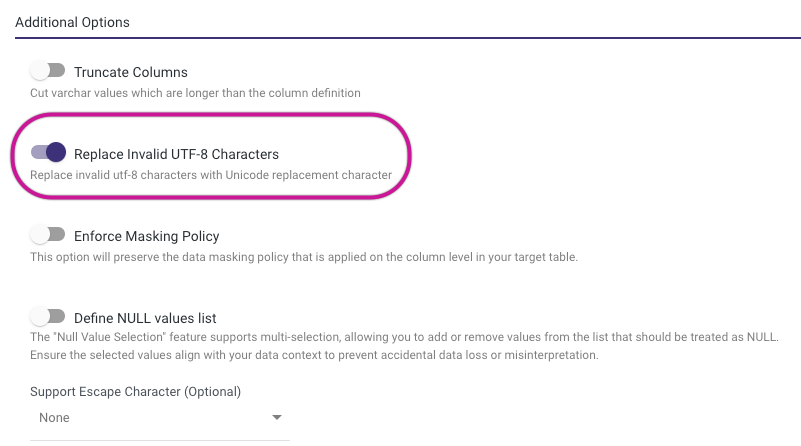
Replace invalid UTF-8 characters option
Replace invalid UTF-8 characters (IGNORE_UTF8_ERROR) manages invalid UTF-8 characters during data loading. This setting determines whether to replace these characters with the Unicode replacement character or stop the loading process and generate an error when encountering invalid UTF-8 encoding.
- TRUE: When you set Replace Invalid UTF-8 Characters to TRUE, Snowflake performs a one-to-one character replacement, replacing each invalid UTF-8 character with the Unicode replacement character.
- FALSE: When you set Replace Invalid UTF-8 Characters FALSE, Snowflake does not attempt to replace invalid characters but instead halts the data loading operation and reports an error upon encountering any invalid UTF-8 character encoding.
- Default Value: Replace invalid UTF-8 characters defaults to False. Snowflake stops the loading process and generates an error for invalid UTF-8 characters.
Use cases
- TRUE: Set Replace invalid UTF-8 characters to True to maintain data availability. The setting replaces invalid characters with a recognizable placeholder rather than halting the loading process.
- FALSE: Set Replace Invalid UTF-8 Characters to FALSE to enforce strict data validation, and any invalid UTF-8 characters should result in an immediate error, preventing the loading of potentially corrupted data.
Enforce masking policy
A column-level security feature called Masking Policy uses masking strategies to selectively hide plain-text data in Target table columns.
Snowflake treats masking policies as schema-level objects. Create a database and schema in Snowflake before applying a masking policy to a column.
When you select this feature, Data Integration makes sure to confirm your masking policy and apply it to each location where the column appears during the Data Flow run.
Prerequisites
To use the Enforce Masking Policy feature, you must have your account set up in Snowflake with the necessary permissions and have this account listed under Snowflake Enterprise Edition.
- If you set up your Snowflake environment using the First method, your account has the required permissions.
- If you configured Snowflake using the Second method, add the following query to the second method's query and run it in the Snowflake console after specifying your Role, Database, and Schema in the relevant variables:
begin;
   /* ATTENTION! Only Enterprise account holders who employ masking policies should use the script below. */

   /* Set variables for script */
   set var_role = 'RIVERY_ROLE';
   set var_database = 'RIVERY_DATABASE';
   set var_schema = 'RIVERY_SCHEMA';
   /*  Switch to Securityadmin role:
 Role that can create and control Users and other Roles as well as manage any object. */
   use role securityadmin;
   /* Grant Masking Policies on a specific schema */
   grant create masking policy on schema identifier($var_database).identifier($var_schema) to role identifier($var_role);
   grant apply masking policy on account to role identifier($var_role);
commit;
Working with the enforce masking policy
Data Integration provides the Enforce masking policy option in three different locations:
- s
- Predefined Reports / Multi-Tables Loading Mode
- s
s
When working with s, you can choose your preferred Data Flow mode. The Enforce Masking Policy appears in two locations:
- In Predefined Reports or Multi-Tables modes, the option appears in the Table Settings of a specific table.
- Other Data Flow modes include this option in the Advanced options.
s
In s, you can locate it under the Target section.
Enforce masking policy limitations
- Ensure not to use quotations while defining the Masking Policy Identifier value. It must also begin with an alphabetic character and cannot contain spaces or any other special characters.
- Configure your account with the proper permissions in Snowflake and listed under Snowflake Enterprise Edition.
- If you select Enforce Masking Policy and no masking policy associated with the Target table, the Data Flow does not run.
Define NULL values list toggle
Data Integration ingests source data to Snowflake using a COPY command.
By default, when you set the toggle to False, Data Integration applies the following NULL_IF clause:
NULL_IF=('', 'NULL', 'null', 'NUL', '0000-00-00', '0000-00-00 00:00:00')
The platform replaces each value with NULL. You can update the list of values (without single quotes) by turning on this toggle.
- For CDC Data Flows, you can apply the
Null_Iffunction only during the initial migration phase. After the initial migration, Snowflake CDC streams no longer use theNULL_IFclause. - Making changes to existing running Data Flows may require performing an initial or full migration to ensure data consistency.
Escape character (optional)
Escape characters let Snowflake interpret special characters in strings as literal characters rather than control characters. Use escape characters in SQL to change the behavior of characters like the single quote ('), double quote ("), and backslash (\).
Working with escape characters
Data Integration offers the option to use escape characters in Snowflake, making it easier to run complex SQL statements.
To activate this feature, navigate to the Additional Options section located at the bottom of the Target's tab, choose the escape character of your choice from the list, and Data Integration encodes and runs the statement in Snowflake.
Connecting to Snowflake with Python
Data Integration makes use of the Snowflake Connector for Python, which enables Python developers to establish a connection to the Snowflake data warehouse and run SQL queries.
AUTOCOMMIT in s
The Snowflake AUTOCOMMIT session parameter determines if Snowflake commits each SQL statement automatically as a transaction.
-
True: Snowflake commits every executed statement automatically. This setting removes the need for explicit transaction commits.
-
False: You must commit transactions using the
COMMITstatement. Snowflake commits successful statements automatically but rolls back failed statements.
Setting AUTOCOMMIT to TRUE
In this mode, Snowflake treats each SQL statement as a separate transaction and commits it automatically upon execution.
For example, if you run an INSERT statement, Snowflake inserts the data and commits the transaction immediately.
Setting AUTOCOMMIT to FALSE
In this mode, you need to start and commit transactions using the BEGIN and COMMIT statements. Snowflake holds SQL changes in a pending state until you issue a COMMIT statement.
Avoid setting the toggle to False. In this configuration, you must manage transactions within the Snowflake stored procedure. If a stored procedure implicitly starts and concludes a transaction, Snowflake rolls back the active transaction and generates an error message.
Using Snowflake stored procedures in Data Integration s
Data Integration s let you perform advanced data transformations and custom operations by integrating Snowflake stored procedures. This section details the process of configuring, executing, and managing Snowflake stored procedures within Data Integration s.
Prerequisites
Snowflake database setup:
- Ensure the Snowflake account has the stored procedure created and tested.
- Grant appropriate permissions to the Data Integration connection user for executing the stored procedure.
Configuration steps
- Create or identify a stored procedure in Snowflake
- Add a Snowflake s in Data Integration
- Navigate to s in Data Integration.
- Select Snowflake as the data warehouse option.
- Define the procedure execution task
- Click the Source field.
- Select SQL Script.
- Input the CALL statement to execute the stored procedure.
- Example:
CALL SAMPLE_PROCEDURE();
- Configure parameters (Optional) For stored procedures with input parameters: Example:
call {Snowflake_DB}.etl.update_loadstatus('param_value1', 'param_value2');
- Set output handling. Specify how to handle the output.
Important notes
The RECORD data type flattens nested data into separate fields, prefixing them with the parent field name(s).
Example:
company RECORD
 - id (string)
 - name (string)
This would result in two distinct columns in Snowflake, named company_id and company_name.
Naming Conflict: Consider the following case:
company RECORD
 - id (string)
 - company_id (string)
Both the flattened company_id from the RECORD data type and the standalone company_id column generate a naming conflict during creation.
Resolution:
-
REST API: Use the control over column definitions and mapping to manage varying structures.
-
Fixed schema: Rename columns in the source to resolve conflicts in databases or structured sources with restricted customization.
Limitation
By default, Snowflake creates tables and schemas using uppercase characters. Data Integration does not support lowercase table or schema names, and when you use them, it results in automatic conversion to uppercase.
Troubleshooting Snowflake timeout errors
If you encounter timeout issues in Snowflake, follow these steps to resolve the problem efficiently.
Analyzing query history in Snowflake
- Log in to the Snowflake console.
- Navigate to the History section in the main menu.
- Search for queries executed during the time frame of the delay.
- Find:
- Long-running queries.
- Queries stuck in Queued or Blocked status.
Evaluating warehouse performance and scaling
- Go to the Warehouses section in Snowflake.
- Locate the warehouse used by the Data Flow.
- Check for performance issues, such as:
- Overloaded resources.
- High concurrency or insufficient size.
- If necessary:
- Adjust the warehouse size.
- Enable auto-scaling to handle variable workloads.
Examining error and event logs
- Navigate to Account > Activity > Events in Snowflake.
- Review error and event logs for the Data Flow's execution period.
- Check the logs for warnings or errors, identifying the cause of the timeout.
Troubleshooting merge errors
The following table describes common errors you may encounter when running Data Flows in Merge mode, what they mean, and how to resolve them.
| Error | Meaning | Fix |
|---|---|---|
| Data Flows without primary keys cannot be activated | Merge mode requires a match key. The Data Flow cannot activate because no match key is defined. | Define a primary key on the source table, or manually select a match key in the table settings before activating the Data Flow. |
| Data Flow runs in Append mode instead of Merge | You have not selected a match key in the table settings, so the Data Flow falls back to Append mode. | Open the table settings for the Data Flow, select a match key, and run the Data Flow again. |
| Insufficient privileges on MERGE | The role assigned to the Data Integration user does not have the MERGE privilege on the target table. | Re-apply the grants in Configuration A – standard schema or Configuration B – managed access schema. |
| Insufficient privileges on ALTER | The role does not have ALTER TABLE permission, which is required for schema evolution. | Configuration A: run GRANT ALTER ON ALL TABLES and GRANT ALTER ON FUTURE TABLES for the target schema. Configuration B: re-run the combined DML + ALTER grants as the schema owner role. |
| Cannot grant privileges in managed access schema | You attempted to run Configuration A grants inside a managed access schema. Only the schema owner role can grant privileges in this schema type. | Switch to the schema owner role and re-run the Configuration B grants. |
| Duplicate keys in source | The source data contains rows with duplicate values for the defined match key. Merge mode cannot resolve which row is authoritative. | Deduplicate the source data before loading, or adjust the match key definition to use a column with unique values. |
| Grants fail with an insufficient privileges or ownership error | The role running the grant commands does not own the target tables and lacks GRANT OPTION. This is required to grant privileges to BDI_ETL_ROLE. | Switch to the role that owns the target tables, then re-run the grants in Configuration A or Configuration B. |
